
I take a few classes at FXPHD and one question I had today was about using the Cinema4D Atom Array and how to have individual control over the spheres.
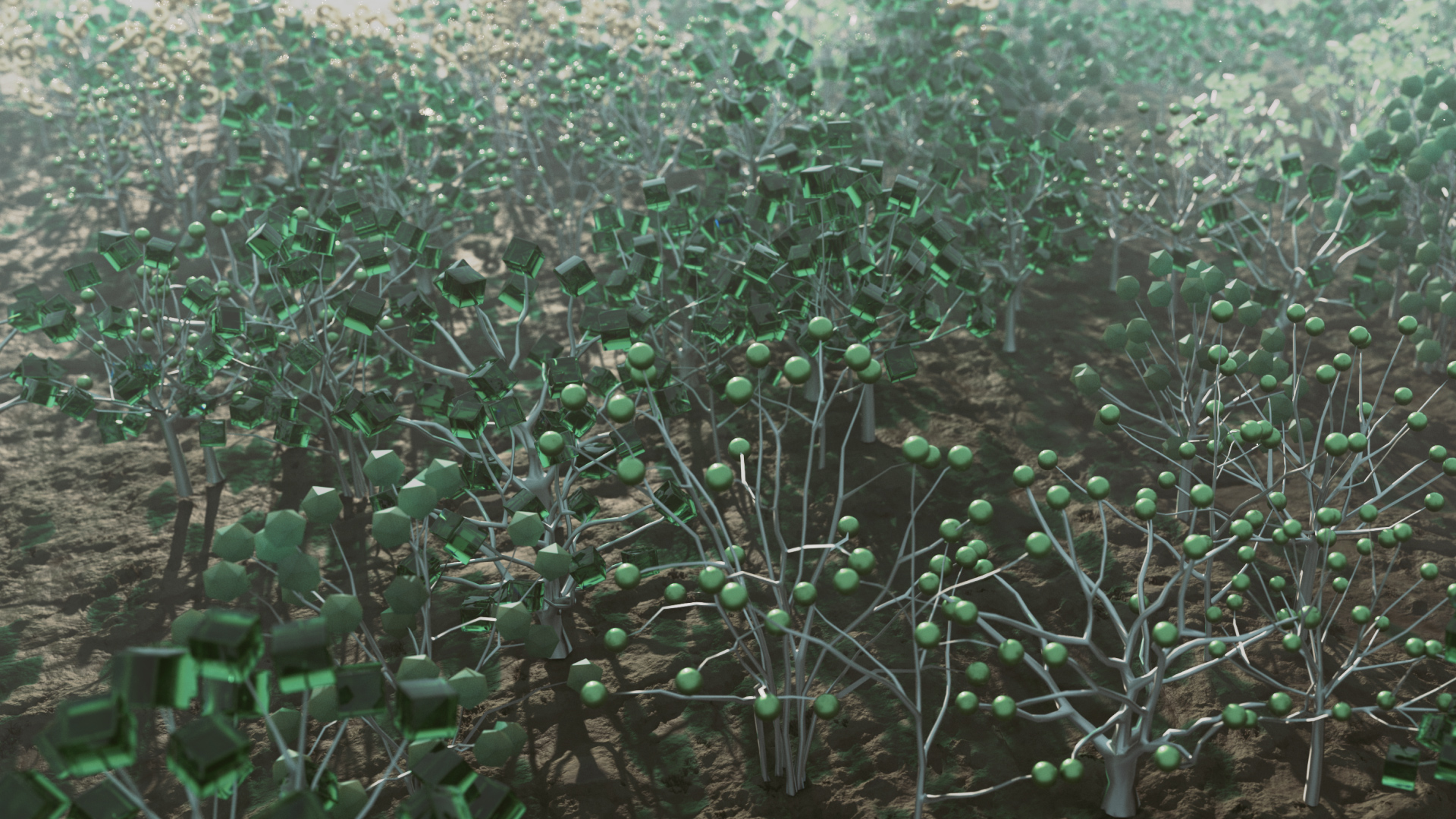
I rebuilt the Atom Array using a couple of Cloner Objects. The first Cloner adds a Sphere to each Vertex of the object I’m cloning onto. The second Cloner Object adds a Cylinder to each edge of the object I’m cloning onto. The trick here is to use the Edge Scale parameter in the Cloner Object. This allows you to scale the clones to fit the length of the edge. You can also offset the clones for some interesting effect.
Cloner Edge Scale
To control the spheres, you can of course use Effectors, and this combined with the MoGraph Selections allows ultimate control. Alternatively, you can always use Xpresso for even more flexibility. The Atom Array is a simple one trick pony, this type of setup not only replicates the Atom Array but gives you a lot more besides.
Scale along the edges of the mesh
I also added the MoGraph Color Shader inside a Colorizer, this combined with a Random Effector allows you to randomise the colour of the Clones, but keep the random selection within a specific range of colours.
The scene is free to download here. I hope some of you find this useful?
In this tutorial, Tim Clapham takes you through the process of building a controller for a deformer object. In this example we take a null object and then use the position values to drive the strength of a bend deformer with a basic Xpresso setup.
Bend Controller
Once this simple example is complete, the setup is enhanced by calculating the angle between the source object and the controller which is then used to drive the angle parameter in the bend deformer, thus the deformer always bends towards the controller.
Xpresso Setup
This type of setup has many uses particularly for animation and the setup can easily be expanded upon to allow control of several deformers directly in the editor viewport. As an example, Tim takes the setup one stage further by adding the MoGraph Delay Effector into the equation. This allows you to add a spring effect or a nice ease into the deformer strength.
Posted in Cinema4D Misc on September 21st, 2012 by Tim
Here’s a new tutorial for all you Cinema4D users out there. Hopefully some tips and tricks that will help improve your workflow.
Attribute Manager Project
The humble Attribute Manager is one element of the C4D user interface that we use constantly and it has many features that may or may not be known to you. In this tutorial I attempt to cover as many of them that I can remember. I improvised when recording this, so please excuse any fumbling or mistakes (I’m not so good with my alphabet!).
Attribute Manager Modes
I’m sure a lot of the stuff I mention you will know already but I’m guessing that there will be at least one or two new tips hidden amongst these. I do not go through all the features of the AM, there is after all so much you can do there. However I think it would be a great idea if you add your own AM tips into the comments then everyone who visits this page can glean some extra knowledge along the way.
Attribute Manager History
Anyway enough of my banter, check out the tutorial below, or head over to Vimeo to watch.
I recently had a question of how to create TP from dynamic collisions when using a Cloner Object. In other words how do you create an emitter at the collision point of each clone. If you haven’t seen the original tutorial on this then please check this post.
It isn’t actually that tricky once you understand the basic principle. What you need to do is to iterate through each of the clones in the cloner and then by using the Dynamic Body State node you can output the dynamic position of each object (clone).
Xpresso Setup
In your Xpresso setup, output the Object from the Cloner Node, then link this into a Dynamics Body Node, you can then output the Count. This number corresponds to the number of clones in the cloner. Use this as the Iteration End value in an Iteration Node. Now you have an iterator which will iterate through all the clones. You also need to link the Cloner Object Output into another Dynamics Body Node. In this second Dynamics Body Node you can link your Iterator Output into the Object Index, this will then link the iteration value to the index of the clone. In other words it will count through each clone and check the dynamics state.
Particles From Clones
Once you’ve done that you can link the object output into one of the Object A / B inputs of the Dynamics Collision Node, just as I did in the original tutorial. You should find that all your clones will emit particles when they collide with the other specified collision object.
In this collection of tutorials created for Maxon’s You Tube channel, I explore techniques you can use when working with Cinema4D Multipass rendering in combination with the After Effects exchange feature of Cinema4D.
C4D To AE Basic
Taking you step by step through the process, the tutorial starts by covering the basic principles of working with multipass rendering and exporting 3D information from your Cinema4D scene over to your After Effects projects. Ensuring you use the correct colour management for outputting from Cinema4D and configuring your After Effects projects to make sure the files are composited in the right environment.
C4D To AE Advanced
The second tutorial then moves on to some more advanced techniques including the use of Xpresso to export 3D information from specific clones and outputting lights as separate render passes. This information is then imported into After Effects and the 3D data used in combination with third party effects such as Trapcode Particular and Video Copilot Optical Flares.
AE To C4D - Camera Tracker
Finally I take you through the process of transferring your After Effects information over to Cinema4D. Using The Foundry Camera Tracker, you will track and solve some footage, resulting in an After Effects camera and reference nulls being created. This camera and null information will be exported from After Effects into Cinema4D and used to build some basic proxy geometry for catching shadows and reflecting the environment. This is then output using Cinema4D multipass rendering and composited back over the original footage in After Effects.
AE To C4D - Camera Mapping
The powerful multipass rendering and compositing exchange features of Cinema4D allow you to access the individual render passes such as reflections, shadows and lighting from your 3D scene directly in your After Effects compositions, allowing you to grade and enhance your renders with ultimate control. Access to 3D data taken directly from your Cinema4D scene and imported into After Effects ensures precise fidelity between native After Effects 3D elements and rendered elements from your Cinema4D scene.
C4D To AE - Light Passes
As well as discussing the exchange feature in-depth, I’ll demonstrate many useful techniques for working in Cinema4D and After Effects, including scene management, basic lighting, MoGraph Color shader, MoGraph Multishader, Cloner Object, Effectors, Rigid Body Dynamics and much more.
C4D To AE - Comp with Effects
To download the assets required to complete these tutorials please follow these links…
Oh, I think I forgot to mention that all of this is free, thanks to the awesome team at Maxon. The iPod model is something I made specifically for this tutorial, it isn’t the greatest example of modelling, however it is native C4d with lowpoly mesh, hyperNURBS and other generators, it has a UV map and best of all it’s free for use in any of your projects, commercial or otherwise. It would be nice if you do use the model in any renders or on your site if you could please link back to helloluxx. The model is not free to distribute in any form and I’d appreciate it if you sent people to this page instead, thanks.
C4D To AE Basic: Part 1 (~25mins)
In the first part of the tutorial Tim shows you how to install the Cinema4DAE plugin into After Effects. Walks you through the setup for the free iPod model. In Cinema4D, you will animate the iPod model and a scene camera, manipulate the animation curves in the F-Curve manager. Create some basic materials and use the Layer Browser for organising the scene.
C4D To AE Basic: Part 2 (~32mins)
Setting up some simple lighting for the scene. Optimising the render settings for speedy preview rendering. Working with multipass rendering and using colour management combined with Linear Workflow when outputting your renders. Using the compositing tag to isolate reflections to specific objects and assign object buffers. Flight check the render settings in the Picture Viewer to ensure there are no mistakes before committing to the high quality render. External Compositing tag and AEC export for transferring 3D information from Cinema4D to After Effects.
C4D To AE Basic: Part 3 (~20mins)
Importing the AEC file into After Effects. Correct colour management settings for working with Linear Workflow and multipass compositing. Screen replacement on the iPod model. Colour correction opportunities. Compositing the rendered shadow and reflection over After Effects layers.
C4D To AE Advanced: Part 1 (~30mins)
Setting up a Cloner Object to create a flow of hundreds of objects along a spline. Using the MoGraph Multishader and the MoGraph Color Shader to create multiple coloured versions of your clones with corresponding coloured screen graphics. Adding variation to the animation with the Random Effector.
C4D To AE Advanced: Part 2 (~17mins)
Animating a camera using nested null objects. Basic lighting. Configuring multipass render settings to output various light passes.
C4D To AE Advanced: Part 3 (~24mins)
Using Xpresso and User Data to determine the index value of clones and then linking objects to the position of these specific clones. Baking object animation using the Bake Objects function. Exporting and then analysing the AEC exchange file.
C4D To AE Advanced: Part 4 (~30mins)
Importing the multipass renders and 3D information from Cinema4D into After Effects. Using the imported lights with Trapcode Particular and VideoCopilot Optical Flares. Adding After Effects 3D solids and effects to match the Cinema4D imported camera. Returning to Cinema4D to explore a technique for isolating mattes from individual objects within a Cloner Object.
AE To C4d: Part 1 (~18mins)
Using The Foundry Camera Tracker to track some footage in After Effects. Set up a ground plane and reference nulls. Export the 3D information to Cinema4D.
AE To C4d: Part 2 (~28 mins)
Create some proxy geometry in Cinema4D for catching shadows and reflecting onto objects using the reference nulls and solids exported from After Effects. Add a dynamic particle system of spheres which interact with the proxy geometry. Output multipass renders and return to After Effects to composite the render over the original footage.
Align to spline is no doubt an expression that most Cinema4D artists will have used at some time or another. The problem with the built in expression is that it is clamped and you can only animate the position parameter from 0% to 100%. If you want the object to loop or wrap around the spline it is not so simple.
Align To Spline Xpresso
There are other solutions available within the application, you could use MoGraph and clone onto a spline. Then use the offset parameter. However in this tutorial, I show you how to build a loopable align to spline expression using just Xpresso. The advantage here is you can use this setup with the most basic install of Cinema4D and also the object is still in it’s original state as it hasn’t been passed through a generator.
Align To Spline User Data
I show you how to include a tangential option and the addition of a pop-up menu to define the axis you would like to align.
Anyway enough of my waffle. Check out the tutorial below or click through and watch it over on the helloluxx channel on Vimeo
I recently completed a tutorial for the Maxon’s You Tube channel. It goes into quite a bit of detail, so for that reason it is split into 4 parts.
Something you might be interested in?
I’ve copied some of the blurb from the You Tube page here so you get an idea of what I cover in the tutorial. If you want to check it out then please visit the Maxon You Tube channel.
In this tutorial, Tim Clapham from Luxx takes you step by step through the process of creating a Motion Graphics animation with CINEMA 4D.
You will learn how to use MoGraph elements such as the Cloner Object and how various effectors can be used to control the generated clones.
Working with Release 13, Tim covers several of the newer features such as the XRef object and the new Physical Renderer. However, throughout the process, options are presented to enable users of versions prior to Release 13 to complete the tutorial.
You can view the first section here, but why not visit Maxon’s channel and you can watch the other sections and also check out some other great videos.
Here’s another little tip for working with Cinema4D, specifically Thinking Particles. I offer up a solution to what appears to be quite a common problem with TP and hopefully this small tutorial will stop a lot of head scratching.
This time around, I show you a simple technique you can use to stop the pulsing you sometimes see with Thinking Particles when your emitter is moving too fast and you get those big lumps of particles emitted on every frame rather than a nice smooth emission.. Yes – you guessed it, this is sub-frame particle emission.
Of course this tutorial doesn’t cover many of the different ways that you can emit particles using TP but hopefully it gives you some idea of a solution that you can adapt to your own TP scenes.
If you ever wanted to work with high and low resolution models in Cinema4D then this tip should come in handy.
Using the Instance Object combined with a simple Xpresso setup, this shows you how to create an object that allows you to work with a low polygon model and then swap this out for a high polygon version whenever you need to render or preview the final result.
This technique will keep your workflow streamlined, and allow you to perform tasks such as dynamics simulation and caching without the overhead of polygon heavy scenes. Once the caching is complete, you can switch out the object for the detailed version and render away.
Once created, this simple object will become a vital part of your Cinema4D library. You’ll never know how you worked without it!
Kudos to Kai Pederson who originally showed me this trick.
For more in depth and detailed tutorials, check out the Learn Dynamics for Cinema4D training collection. Over 10 hours of intensive training for working with Cinema4D and Dynamics. Available to purchase online here
Here is a setup that you can use when working with Thinking Particles and emitting into objects. This setup allows you to emit particles from multiple objects but only using one emitter. The principle is as follows…
You basically iterate through a list of objects. Then pass these objects into the volume position node, the result being that the particles are then placed into each object from the list. There is also included a simple method of enabling or disabling the objects from being included. Therefore you can control which objects have particles inside or not on a per object basis.
The great thing about a setup like this is that it is fairly simple to use and expand. It is easy to adjust the particle emitter as you are only using one emitter, yet it is quite powerful because it allows you to emit particles into an infinite number of objects. Well ok, perhaps not infinite, but you can certainly emit into hundreds if not thousands of objects with relative ease.
If you look at the screenshot above it may look like the particles are all in the same mesh, but each letter of the logo is an independent object. This means each letter can be transformed, textured and animated individually. Yet all the particles are generated with one emitter.
Anyway enough of this banter, how does it actually work?
Xpresso Setup
Here is a screenshot of the Xpresso setup. The first node is the Object List node. You can find this by right clicking in the Xpresso window and choosing New Node > Xpresso > Iterator > ObjectList
Object List Node
This node is really handy as it allows you to drag any objects from your scene into the Iteration List field and it will then iterate through the list. In other words it will output the object for every object in the list. It doesn’t matter where in the object manager hierarchy these objects are, so they don’t all need to exist in the same hierarchy. If you do want to add multiple objects by shift or control clicking to select your objects, remember to lock the attribute manager with the ObjectList parameters visible before you start clicking in the object manager to select your objects. If you don’t, you’ll lose the Iteration List field and will have to go back and select the ObjectList node in your Xpresso window again.
Iteration List
The next node along is a simple object node. Link the Instance output into the object node Object input port. If you drag one of your objects into the Xpresso window it will automatically add the Object node for you. You can see I dragged the ‘L’ object into my setup.
To emit particles we will use the most basic of all the TP generators. We would like to create particles and we are not really bothered about speed, position etc at this point in the setup. ThePBorn node is found under… New Node > Thinking Particles > TP Generators > PBorn
Add the PBorn node
Next we need to place our particles into each of the objects. To do this we can use the PVolumePosition node. New Node > Thinking Particles > TP Helper > PVolumePosition
Add the PVolumePosition node
The PVolumePosition node allows us to specify an object volume that we would like to use with our particles. So you could link an object node output port into the PVolumePosition Object input port. However we want to iterate through our list, so we will link the ObjectList Instance output into this port instead. This in itself will not place the particles into the objects. We need to explicitly define the particles we would like to affect and what we would like to do to them. We use the PSetData node for this, which can be found under New Node > Thinking Particles > TP Standard > PSetData
Add the PSetData node
First of all you drag the Particle Birth from the PBorn node into the PSetData Particle input port. This tells the node that these are the particles we would like to affect. We then drag the PVolumePosition Position output and link it into the PSetData Position input port. Basically saying that we would like to place our particles into the positions that are defined by the PVolumePosition node.
So in a setup where you use one object, this would all work fine now. If you have been building the setup as you read through this, then press play and you will probably see all your particles being created in the first object that you placed into the ObjectList. It seems that it isn’t iterating through the list. So at this point we can employ a new trick which offers another benefit as well. We need to force the PBorn node to refresh on each frame. By default the PBorn node is on. If we link our iteration through the On port of the node it will check this port for every frame as the ObjectList iterates through each object. The trick I chose to use for this was to link the Xray checkbox into the PBorn On port. By doing this we have the added benefit of including or excluding objects from the setup depending on the state of the Xray checkbox. Of course you don’t need to use the Xray checkbox, you could add some userdata and link that to the On port.
The Xray checkbox
In my setup the Object from the ObjectList is passed through the Xpresso, the Xray checkbox is evaluated, the particles are created and the same object is passed into the PVolumePosition and the particles are placed there. The objects are of course iterated through, so this happens for all the objects in the list. This is then repeated.
Xpresso Setup
So as you can see a nice simple setup with a great workflow and lots of potential. Certainly saves creating an emitter for every object you’d like to place particle into. Now what you do with those particles is entirely up to you.
If you’d like to download the sample scene I created which demonstrates this then click here. It was made in 11.5, but should be fine in r11 and r12 too. Have fun!